Article
WooCommerce Analytics Not Showing All Orders? How to Fix It
WooCommerce Analytics works from its own copy of your orders, filled in the background. Why orders go missing from it, and how to fix each cause.
If WooCommerce Analytics shows fewer orders than your Orders screen, your orders are safe. The gap comes from how Analytics works: it keeps its own copy of your orders and builds every report from that. WooCommerce fills the copy with background jobs, small tasks your site runs behind the scenes without anyone pressing a button. A few settings then decide which orders in the copy the reports count.
So a missing order has either not reached the copy yet, or reached it and been left out by a setting. Once you know which, the fix is usually one setting or one button.
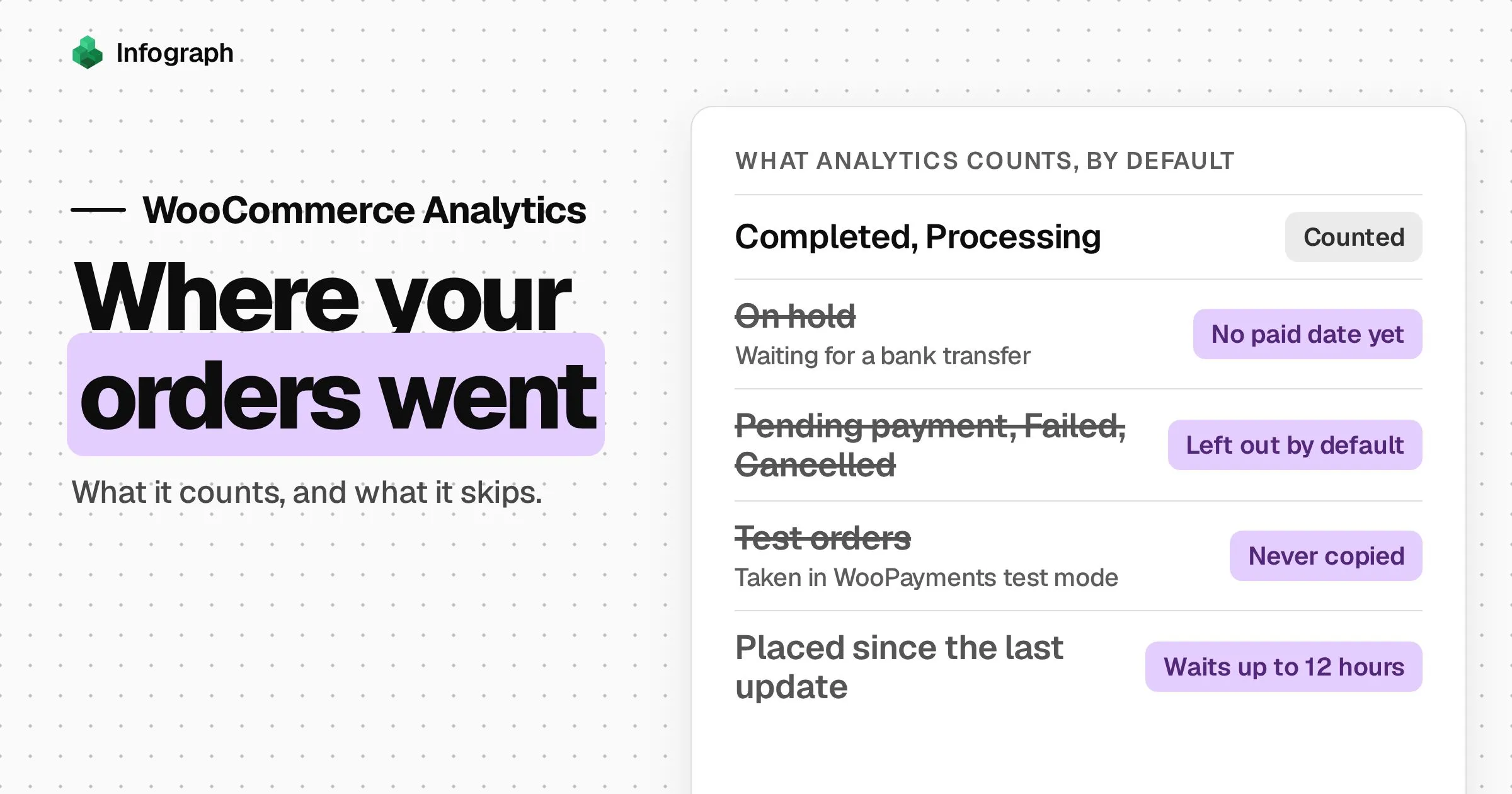
The cause that catches newer stores is a change in WooCommerce 10.5, released in February 2026. Stores set up since then update Analytics all at once, every 12 hours. Anything sold since the last update won’t show until the next one, unless you press Update now. If your Analytics reports have a Data status bar at the top, this applies to you.
(This is about the Analytics menu inside WooCommerce. Orders missing from Google Analytics are a tracking problem, with different causes.)
Which cause is yours
What’s missing tells you why:
| What you see | Go to |
|---|---|
| Today’s orders, or the last few hours, are missing | Analytics hasn’t updated yet |
| Some older orders never appear, often unpaid, failed or cancelled ones | A setting leaves them out |
| Test orders you paid for in WooPayments’ test mode never appear | Test orders are left out on purpose |
| Everything before a certain date is missing | Those orders were never copied |
| The number of orders is right but the money isn’t | Analytics counts money its own way |
| New orders have stopped appearing at all | The background job is stuck |
Analytics updates every 12 hours on newer stores
WooCommerce 10.5 added a setting called Updates, under Analytics, then Settings. It has two choices:
- Scheduled (recommended) updates Analytics every 12 hours. It puts the least load on your site.
- Immediately copies each order as soon as it’s placed or changed. WooCommerce warns that it “may slow busy stores”.
To see which one your store uses, open any Analytics report and look at the top:
- If there’s a Data status bar showing Last updated and Next update, you’re on Scheduled. WooCommerce only shows that bar on Scheduled. Any order placed or changed after the Last updated time isn’t in the reports yet, so a new status or a refund waits for the next update too.
- If there’s no bar, you’re on Immediately, and each order should appear soon after it’s placed. If recent orders are still missing, the background job that copies them is probably stuck: see the background job.
Which one you have depends on when your store was set up. Stores set up on 10.5 or later start on Scheduled. Stores that were running before 10.5 stay on Immediately unless someone changes it. Pressing Reset defaults on the settings screen also changes it to Scheduled.
On Scheduled, press Update now in the Data status bar to bring in the latest orders. The update runs in the background. Reload the report after a short wait, and the Last updated time moves on once it’s done.
If Next update shows a time that has already passed, and Update now stays greyed out with a spinner, the update is overdue. That usually means the background jobs aren’t running: see the background job.
If you’d rather see each order straight away, change Updates to Immediately and save. On a quiet store that’s a fair choice. On a busy one, stay on Scheduled and press Update now when you want fresh numbers, for example before you look at a big sales day like Black Friday.
Two settings leave some orders out
An order can reach the copy and still not be counted. Two settings decide that, both under Analytics, then Settings.
Excluded statuses
By default, Analytics leaves out every order whose status is Pending payment, Failed or Cancelled. These are usually orders that were never paid for, so leaving them out of your sales makes sense. Your Orders screen still lists them, though, and that alone can explain the difference between the two counts.
Two more things about this setting:
- If a plugin adds its own statuses (such as “Awaiting pickup”), those orders are counted unless you tick them here.
- Refunded orders always stay in. You can’t exclude that status. Their refunds are taken off your sales on the day you made them (more on that below).
Date type
This setting decides which date each order counts on: Date created, Date paid or Date completed. The default is Date paid.
An order only gets a paid date when its status changes to Processing or Completed. Until then it has none. Take an order that sits On hold while you wait for a bank transfer. Under the default, the Orders and Revenue reports leave it out completely until you change it to Processing. On Scheduled, it then appears after the next update.
The same setting moves orders between days. A bank transfer order placed on the 30th and marked as Processing on the 2nd counts in the next month, not the one it was placed in.
If you want Analytics to line up with your Orders screen day by day, set Date type to Date created and save. There’s no need to import anything after changing it: WooCommerce refreshes the reports by itself. The catch is that unpaid On hold orders then count in your sales from the day they were placed, even if the money never arrives.
Test orders are left out on purpose
If you placed test orders through WooPayments while it was in test mode, they’ll be on your Orders screen but never in Analytics. Since WooCommerce 10.7 (April 2026), Analytics skips them when it copies orders, because they aren’t real sales. No setting brings them in, and importing again won’t either.
This only applies to WooPayments’ test mode. Test orders taken any other way, such as cash on delivery or another payment provider’s sandbox, are copied and counted like real orders.
Import the orders Analytics never copied
Analytics only counts orders it has copied. If your store took orders before Analytics was switched on, or you moved or rebuilt the store and brought the orders across, those orders may never have been copied. The reports then start from a certain date, or show nothing, while the Orders screen holds years of history.
The fix is Import historical data, at the bottom of Analytics, then Settings:
Choose the period
Pick All to copy every order, or choose a date to start from if you only care about recent months.
Decide whether to skip what's already there
Leave “Skip previously imported customers and orders” ticked to add only what’s missing. Untick it to copy everything again.
Press Start
The import runs in the background, so you can leave the page. Come back to Analytics, then Settings, to see how many orders it has copied. Stop import halts it, and anything already copied stays.
On a very large store, WooCommerce suggests importing a year or a quarter at a time.
On WooCommerce 11.0 (August 2026) or later, a warning appears in the same place if some orders failed to copy, with how many. Click View the log to see why, fix that cause, then press Retry failed imports. If the warning begins “More than … orders failed to import”, set the period to All, keep “Skip previously imported customers and orders” ticked, and press Start.
When the count matches but the money doesn’t
Sometimes the number of orders is right and the totals aren’t. Analytics counts money its own way:
- Net sales is what your products sold for, minus refunds and coupons. It leaves out tax and shipping.
- Total sales adds tax and shipping back in.
- A refund counts on the day you made it, not on the day of the original order. A refund in March for a February order lowers March.
To see the difference on one order, pick one with no refund and find it in Analytics, then Orders. (A refunded order has two rows there, one on the day it was placed and one on the day of the refund.) The figure there is its Net sales. It will be lower than the total on your Orders screen by the order’s tax and shipping, because your Orders screen shows the full amount the customer paid.
If new orders stopped appearing, check the background job
The copying is done by background jobs. WooCommerce keeps them in a queue you can see at WooCommerce, then Status, then Scheduled Actions.
In the search box on that screen, type the name of the job that copies orders:
- wc-admin_import_orders copies one order at a time, when Updates is Immediately.
- wc-admin_process_pending_orders_batch copies them in batches every 12 hours, when Updates is Scheduled.
Then look at the Pending and Failed tabs on that screen. These are the jobs’ states, not your orders’ statuses. A pending list that keeps growing means the jobs aren’t being run. A failed job has a log that says why. If the log names a plugin or an error you don’t recognise, send it to whoever looks after your site.
Why would jobs stop being run? WordPress doesn’t start its background jobs on a timer. It checks for jobs that are due whenever someone loads a page on your site (WordPress’s documentation calls this WP-Cron). On a quiet store, that can leave long gaps. It’s also why a few past-due jobs, ones that missed their planned time, are normal. Action Scheduler’s documentation says that several more than a day old mean something is wrong.
WordPress can check this for you. Go to Tools, then Site Health. If it reports “A scheduled event is late” or “A scheduled event has failed”, WordPress’s background jobs aren’t running on time. You can ask your host to “run WP-Cron from a server cron job”. That puts the jobs on a real timer on the server, so they run whether anyone visits or not.
When the pending list starts going down again, clear the old report results. Go to WooCommerce, then Status, then Tools, and run Clear Analytics Cache. WooCommerce keeps ready-made report results so reports load fast. This tool throws them away, and the reports are worked out again from the copy. Your orders aren’t touched. If the numbers still look wrong after that, run Import historical data again.
Keep WooCommerce up to date as well. Later versions have fixed bugs in how Analytics copies orders, and a fix only reaches your store when you update.
Another way to see every order
For most stores, one of the fixes above is all it takes. Some owners also want a second view of their orders that doesn’t rely on Analytics’ copy, or want their orders next to their other data. There are apps for that, such as Metorik, which is built only for WooCommerce reporting.
Infograph, which we make, is another. Its WooCommerce connection uses a read-only key, which can read your store but not change it. With it, Infograph reads every order of every status through WooCommerce’s REST API, the route WooCommerce gives other apps, back to your store’s first order. So it doesn’t depend on Analytics’ copy or its background jobs. Orders you’ve moved to the trash are kept in a list of their own. Nothing is left out on the way in, so you decide which statuses and which date to count when you ask.
You ask in plain words, such as “How many orders did we take each day this month, by status?”, and can build a dashboard from the answer. Our guide to building an ecommerce dashboard covers what’s worth putting on one.
It’s a copy too, so it isn’t live to the second. It updates when you press Sync on the Free plan, daily on Plus and every 30 minutes on Pro (see the plans).
Why does WooCommerce Analytics show fewer orders than the Orders page?
Analytics reports from its own copy of your orders and leaves some out by default: orders that are Pending payment, Failed or Cancelled, and, under the default Date paid setting, orders that haven't been paid yet. On a store whose Updates setting is Scheduled, orders placed since the last update are missing until the next one, or until you press Update now.
Why is WooCommerce Analytics not updating?
If your store is on Scheduled updates, it updates every 12 hours, and the Data status bar at the top of each report shows when it last did. Press Update now to refresh it. If it still doesn't update, or your store is on Immediately, check WooCommerce, Status, Scheduled Actions for pending or failed jobs.
Why is there no Update now button in my Analytics?
The Data status bar with Update now only appears when Updates is set to Scheduled, which came in WooCommerce 10.5. On Immediately, each order is copied as it comes in, so there's nothing to update by hand.
Why don't my test orders show in WooCommerce Analytics?
Since WooCommerce 10.7, Analytics skips orders that WooPayments took in test mode, because they aren't real sales. They stay on your Orders screen. No setting or import brings them into Analytics.
What does "Oops, something went wrong" mean in WooCommerce Analytics?
That message appears when a page in WooCommerce's admin fails to load, which is a different problem from missing orders. WooCommerce's guide to testing for conflicts is the place to start: with a backup or a staging copy of your site, switch to a default theme such as Storefront, then turn off every plugin except WooCommerce and turn them back on one by one until the message returns.
Does clearing the Analytics cache delete any orders?
No. Clear Analytics Cache, under WooCommerce, Status, Tools, only clears the results WooCommerce saved to make reports faster. Your orders, customers and products aren't touched.
What does Delete previously imported data do?
The button sits under Import historical data, in Analytics, then Settings. It deletes Analytics' copy of your orders and customers, not the orders themselves, so the reports are empty until you import again or new orders come in. You'd only use it to start Analytics over from scratch.
Should I set Analytics updates to Immediately?
WooCommerce recommends Scheduled for most stores, because it puts the least load on your site, and warns that Immediately may slow busy stores. On a quiet store where you check Analytics often, Immediately shows each order straight away. Otherwise, press Update now when you need fresh numbers.
I'm having trouble connecting WooCommerce to Infograph
The guide covers each step and the errors you might see, such as a host that strips the key or a firewall in front of the store:
Get answers from all of your data
Infograph reads everything you connect and turns a question in plain words into an answer, a data report or a live dashboard.
Answers, reports and dashboards
Ask a question and get back what it needs: a straight answer, a written report or a dashboard that stays live.
Frontier intelligence
The latest models from the leading labs, chosen for speed, intelligence, price or open source.
Every app and kind of data
Upload files or connect your apps and databases. Infosync keeps them fresh, with nothing to schedule.